
Shipment Details Page

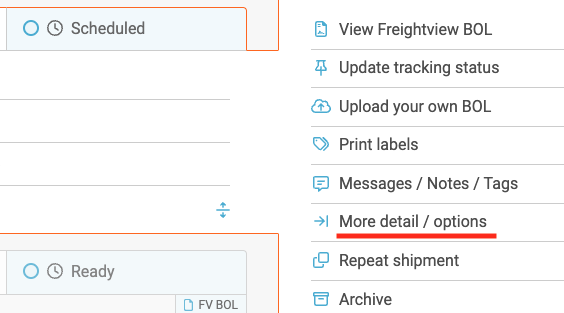
Once your LTL, Parcel, and FTL loads are booked, the shipment details page offers a great snapshot of all your details and additional options. You can access these from your Shipments Page by clicking any load tile, thus opening a slider, and from there selecting More detail/options.
Here is an example of an LTL Shipment:
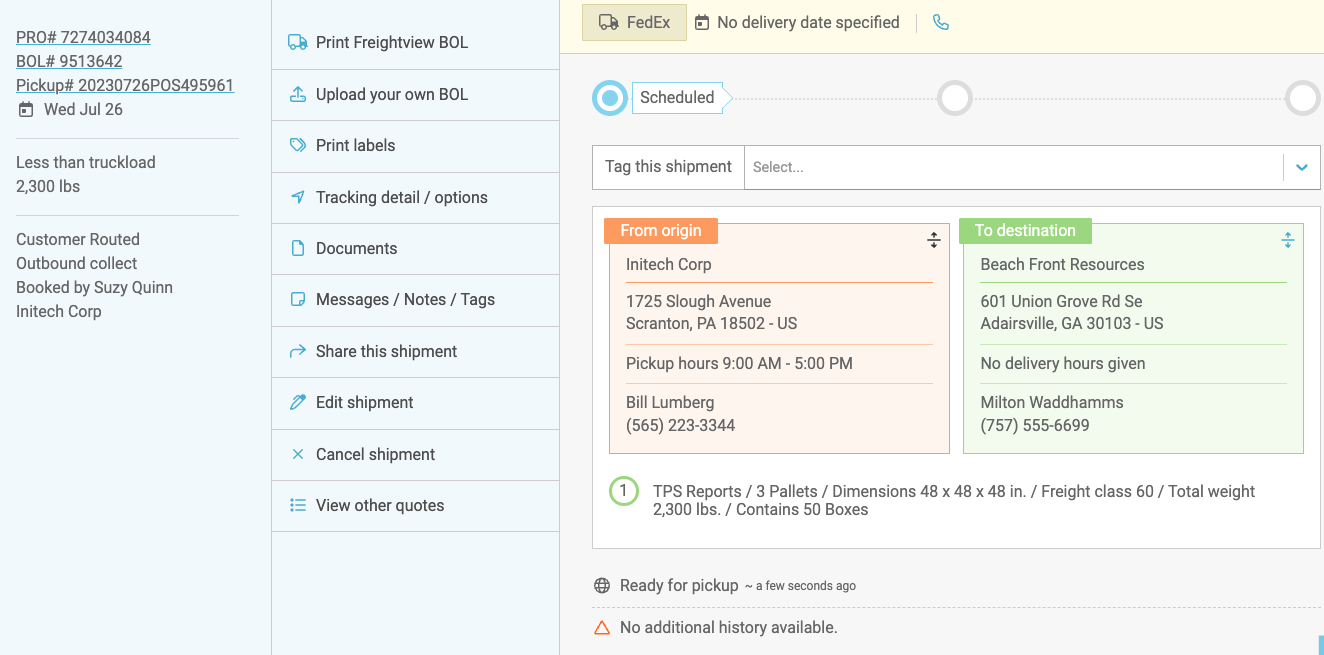
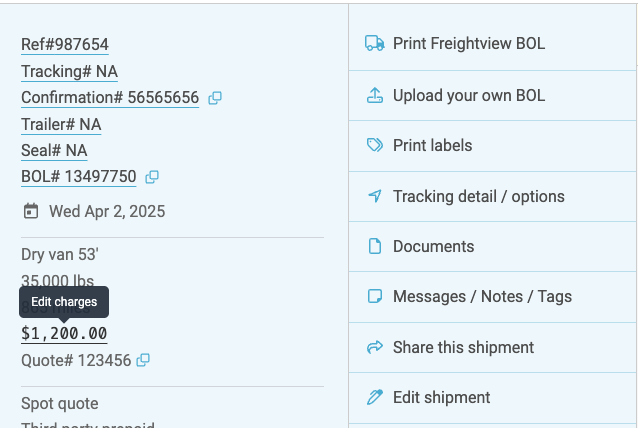
The left panel provides a quick summary of your shipment data, including confirmation numbers, which you can edit or update anytime. In the middle, there is a list of links you can click on to investigate or edit a shipment's details. Below is a line-by-line breakdown.
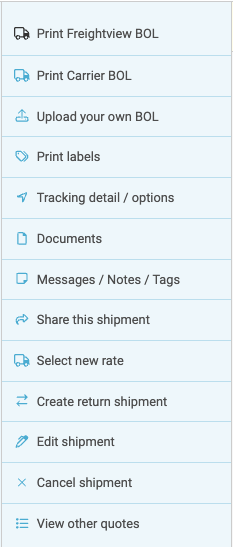
Print the Freightview BOL, Carrier BOL, and Labels
Click these links to generate your paperwork. Uploaded Branding, Preassigned PRO barcodes, and Label settings are also available.
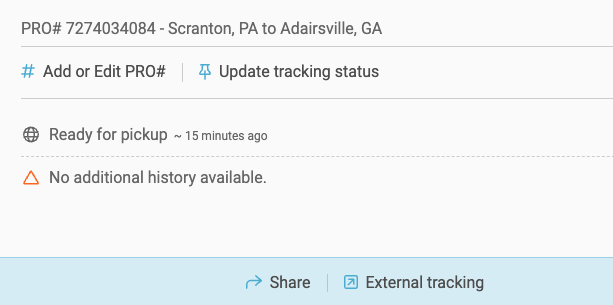
Tracking Detail/Options
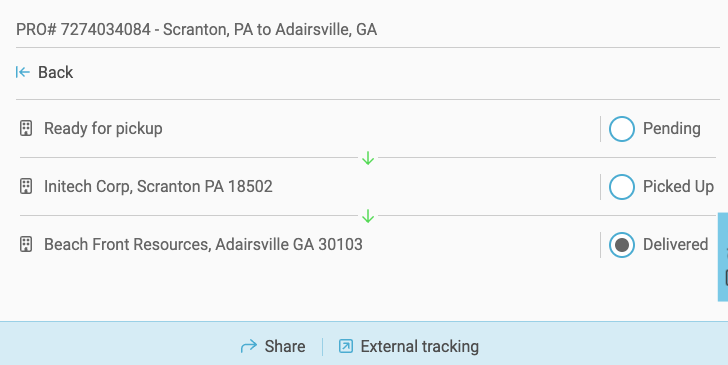
This opens a slider with a snapshot of your tracking updates. You can also manually edit the information by selecting Edit PRO or Update tracking status.
Documents
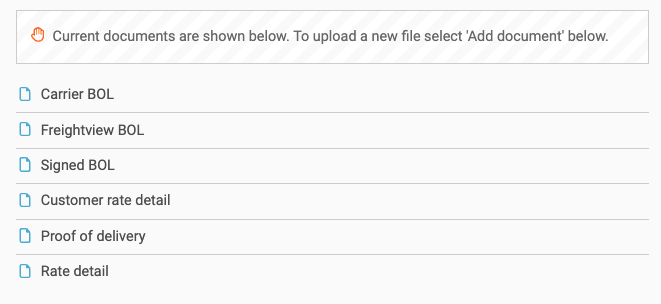
Depending on the carrier, this tab can offer up to fourteen automatic API documents from our LTL partners. These include signed BOLs, PODs, WICs, Invoices, and more. You can also upload any additional documents to help keep your team organized through the Upload Feature.
Messages, Notes, Tags
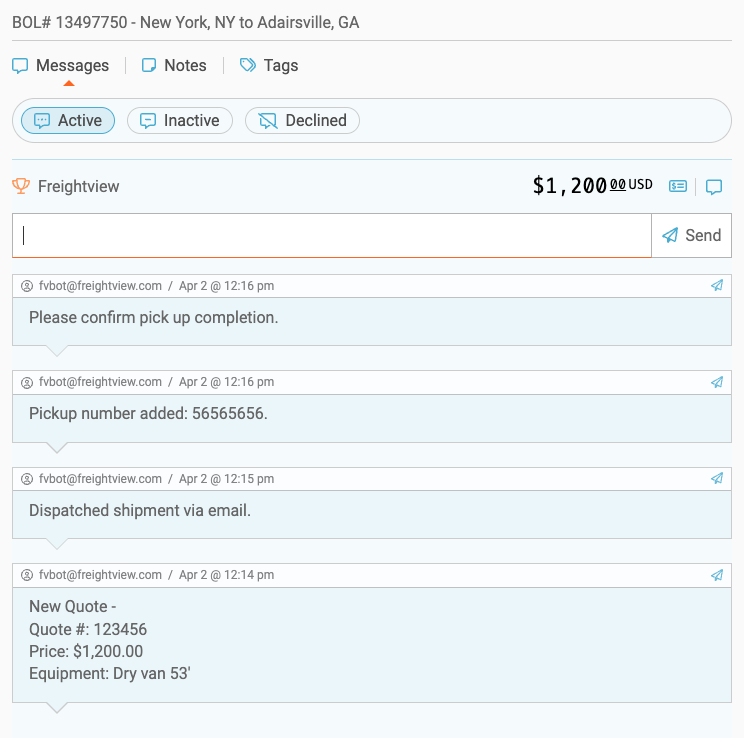
Follow your shipment's life cycle step by step. Messages are the comms between you and your spot quote carrier. Notes are both API updates and manual user entries, which appear on the auditing export. Finally, Tags are here to mark loads for custom filters/reports.
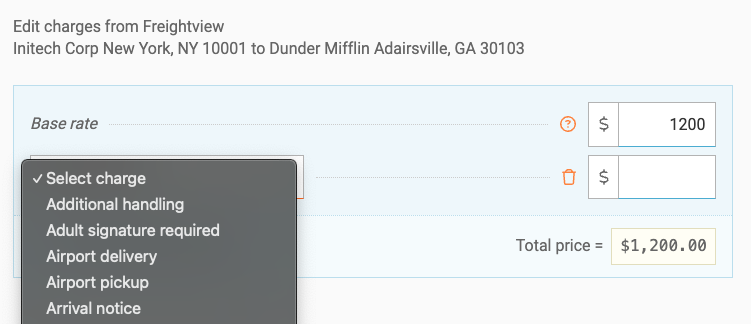
Edit Charges for Spot Quote & Truckload
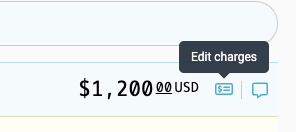
You can add or edit your truckload charges from the messaging slider or from the price listed in the left column. Click to add a charge type from our comprehensive list of accessorials.
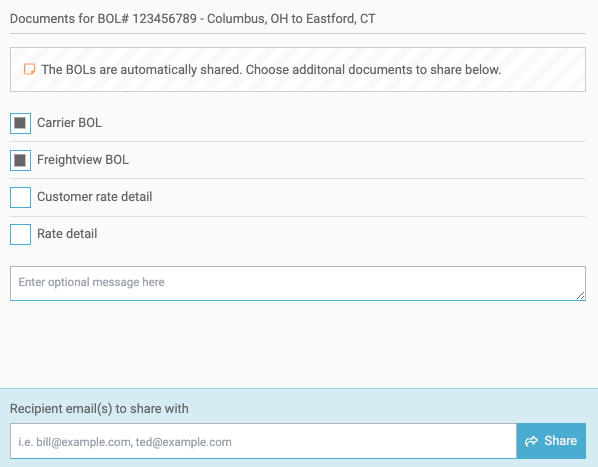
Share this shipment
Click here to enter the email address of any Followers you want to share the shipment page with. You can select any or no documents to attach. Please note that this link is a scaled-down version of the details page, which does not include sensitive data, features, or pricing.
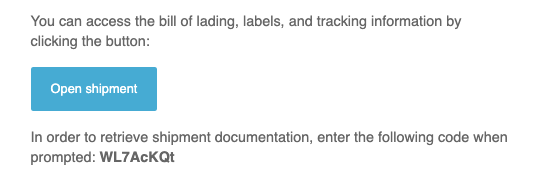
Each link we send out includes a passcode to enter in order to access/download documents.
Select new rate
If you need to change the carrier on your shipment, this will take you back to the Rates page. Please be aware of any banners that might indicate a price or transit time change.
Create a return shipment
This feature will rerun your original quote in reverse order. You can select the same carrier or a new one.
Cancel a shipment
Need to cancel a pickup? We’ll still keep the shipment information in Freightview, but it’ll be marked as canceled. While most carriers will automatically receive the request, please be sure to look out for any banners that may populate, indicating an additional step. (If the option isn't available, you don't have access and will need to contact your Account Admin for further assistance).
View other quotes
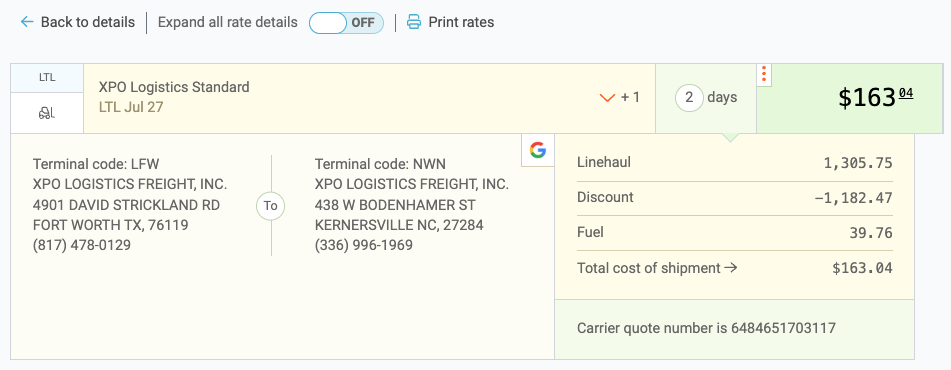
This button allows you to view the other quotes for this shipment that you did not select. You can also view the rate breakdown and terminal contact information.
We hope you find this helpful. Please contact our Support Team with any questions or feedback.