
Truckload Shipments
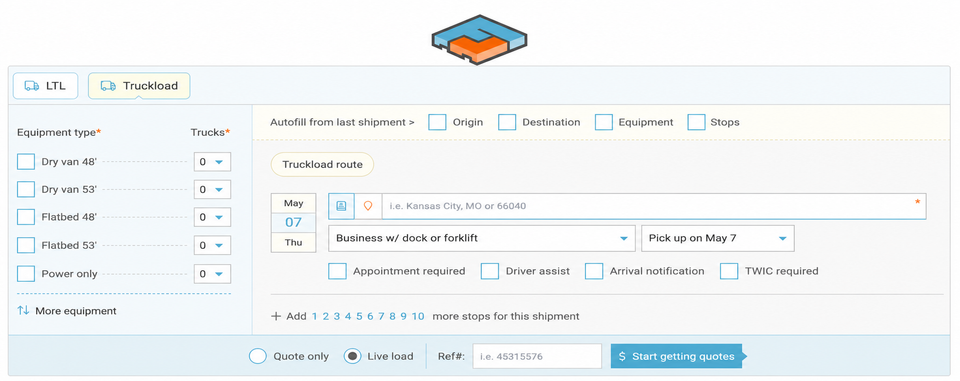
Best in Truckload means a robust workflow for managing and simplifying your moves in Freightview. Options include Multi-stop, Multi-truck, Quote Only, and more!
Start a Truckload Quote
Have you added your carriers already? Click Here for a walk-through on how to set them up before you run your first quote.
Select the Truckload mode after Get a quote.
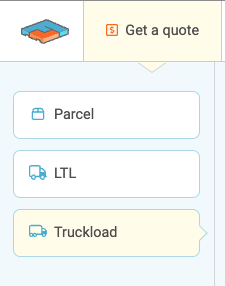
Quote Page
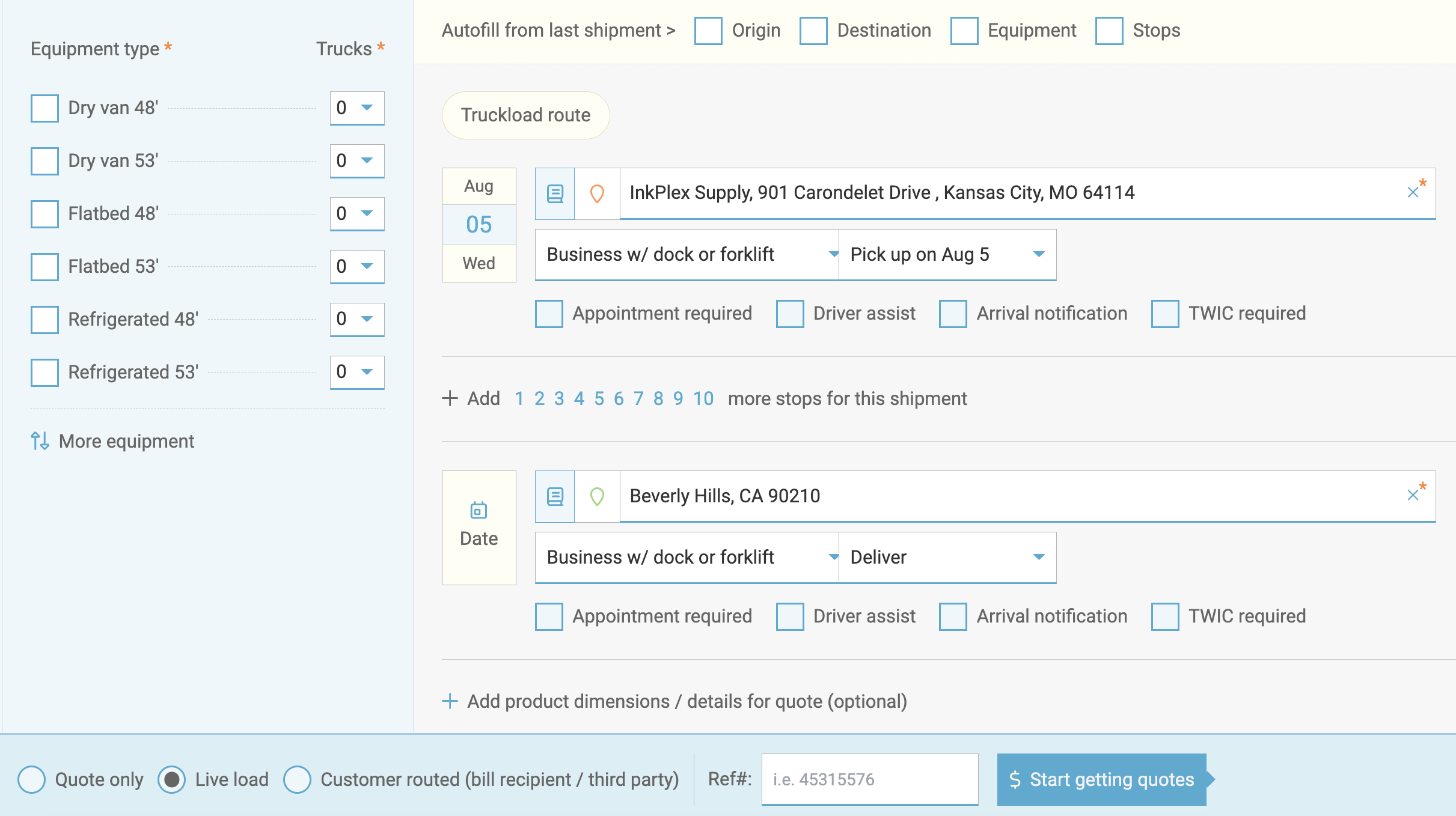
Next, select the equipment type, declared value, multi-stop status, and any applicable accessorials. When finished, click Start getting quotes.
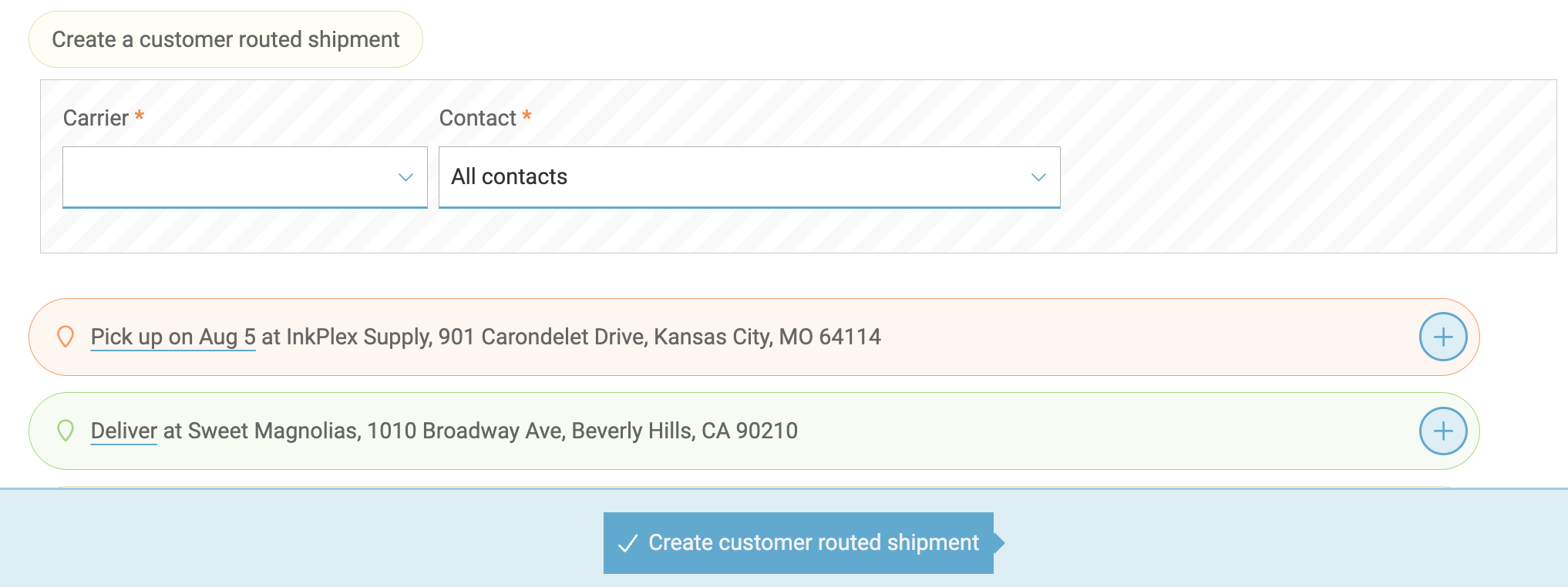
Customer routed - bill recipient/third party
Is the load being paid for by another party and you need to send it out collect? Choose this option, similar to our LTL & Parcel bill to option.

This will take you directly to the booking page to fill out final details and schedule the shipment.
Send out rate requests
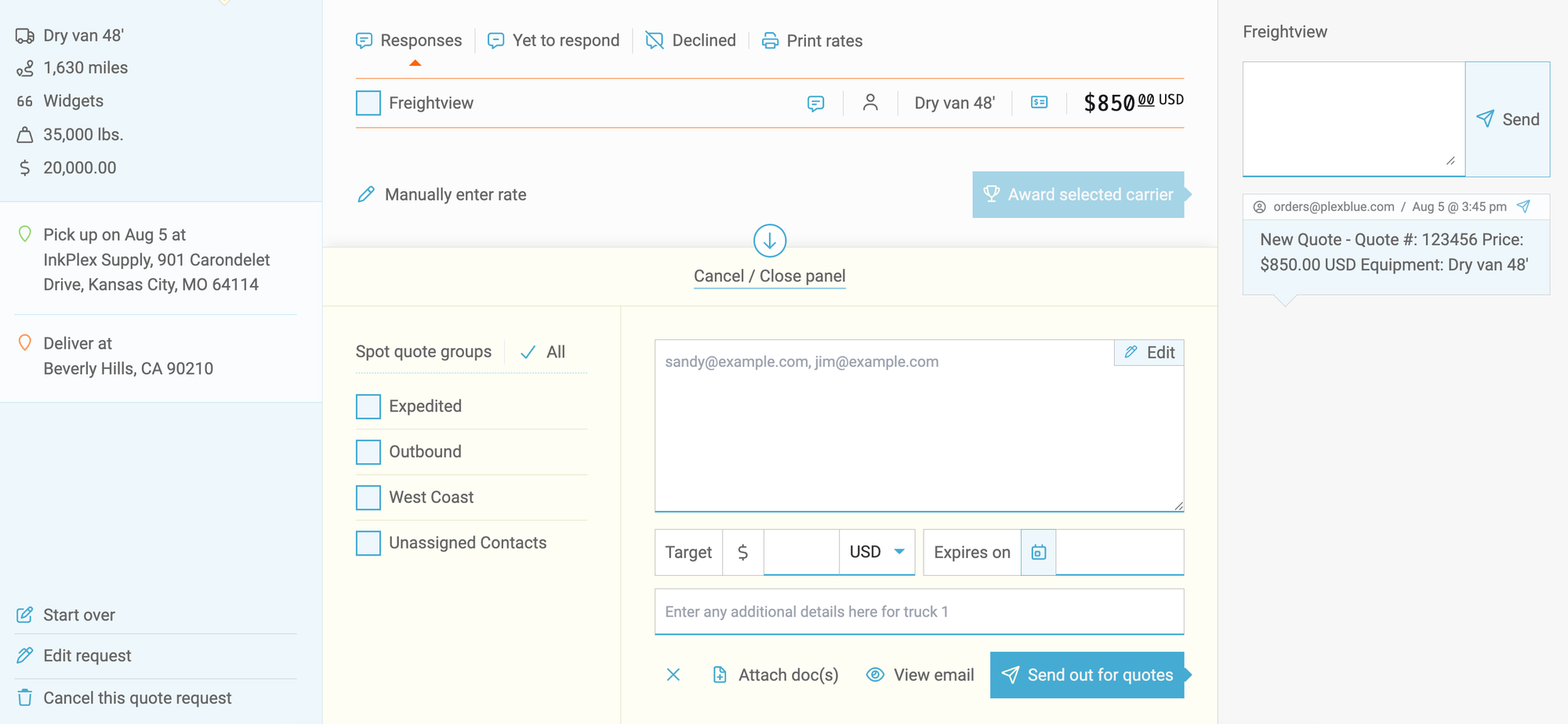
Select Quote only or Live load to finalize your load details and request bids. Next, add your carrier contacts, attach any documents, or include any additional details needed to secure the best rate. Then finalize it by clicking Send out for quotes.
In Process
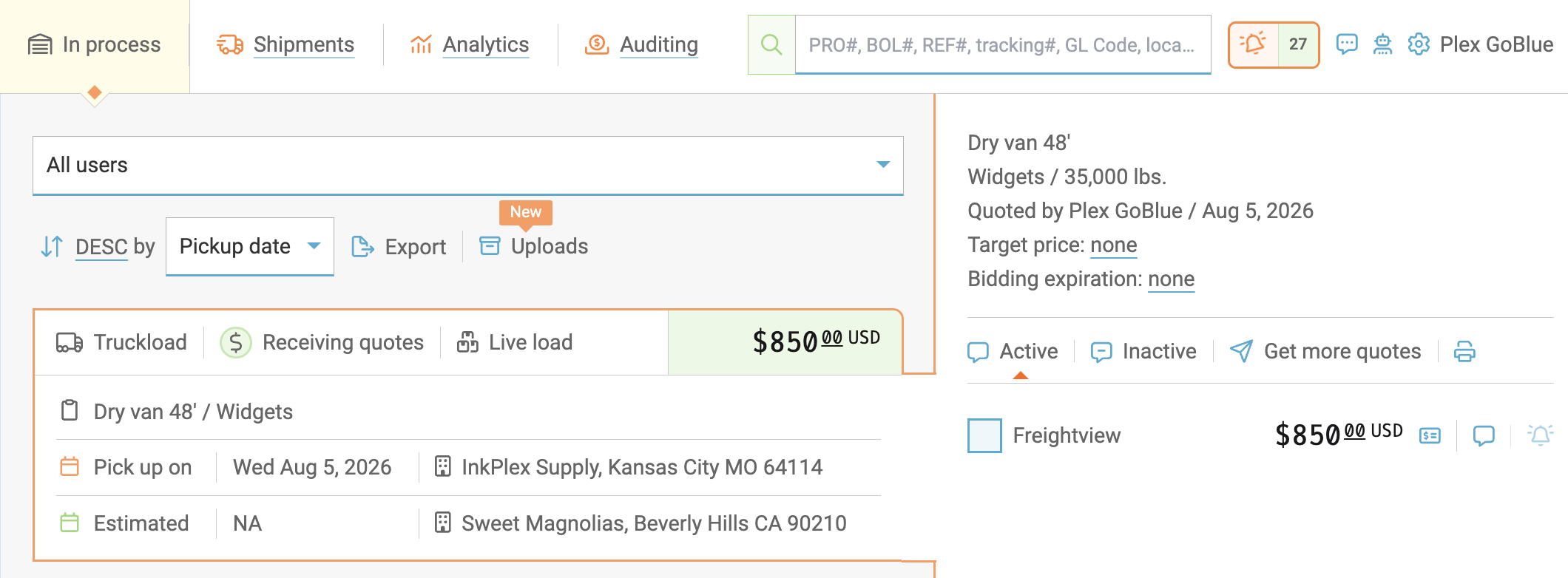
Your Truckload Quote has now been sent; you can manage your responses from the In Process tab.
Award a Carrier
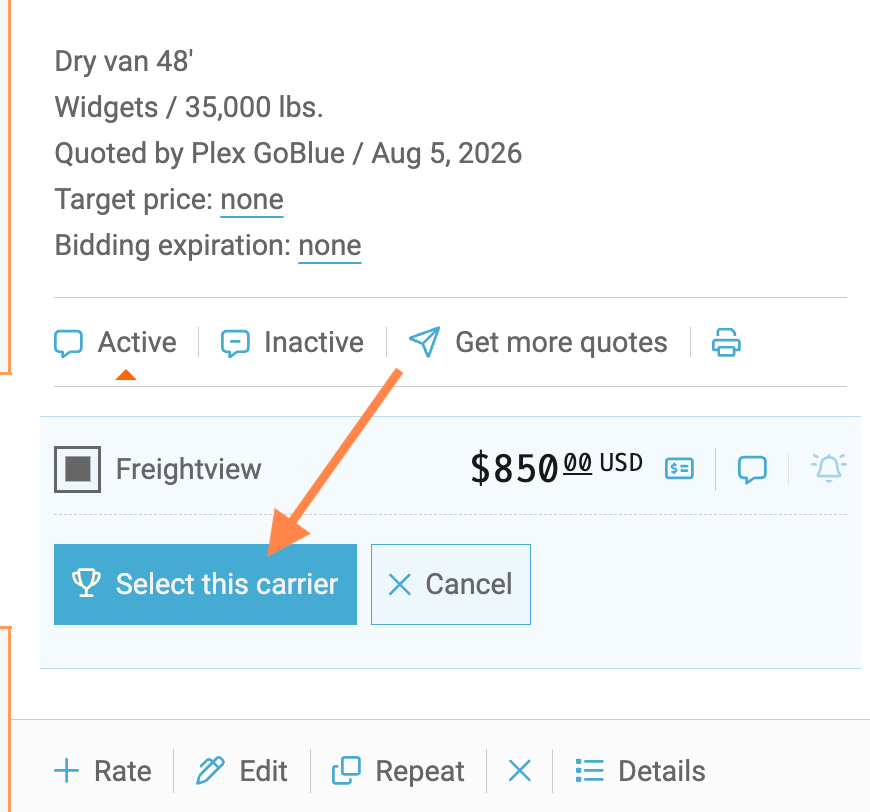
When it’s time to pick a provider, click Select this Carrier.
Confirm & Book
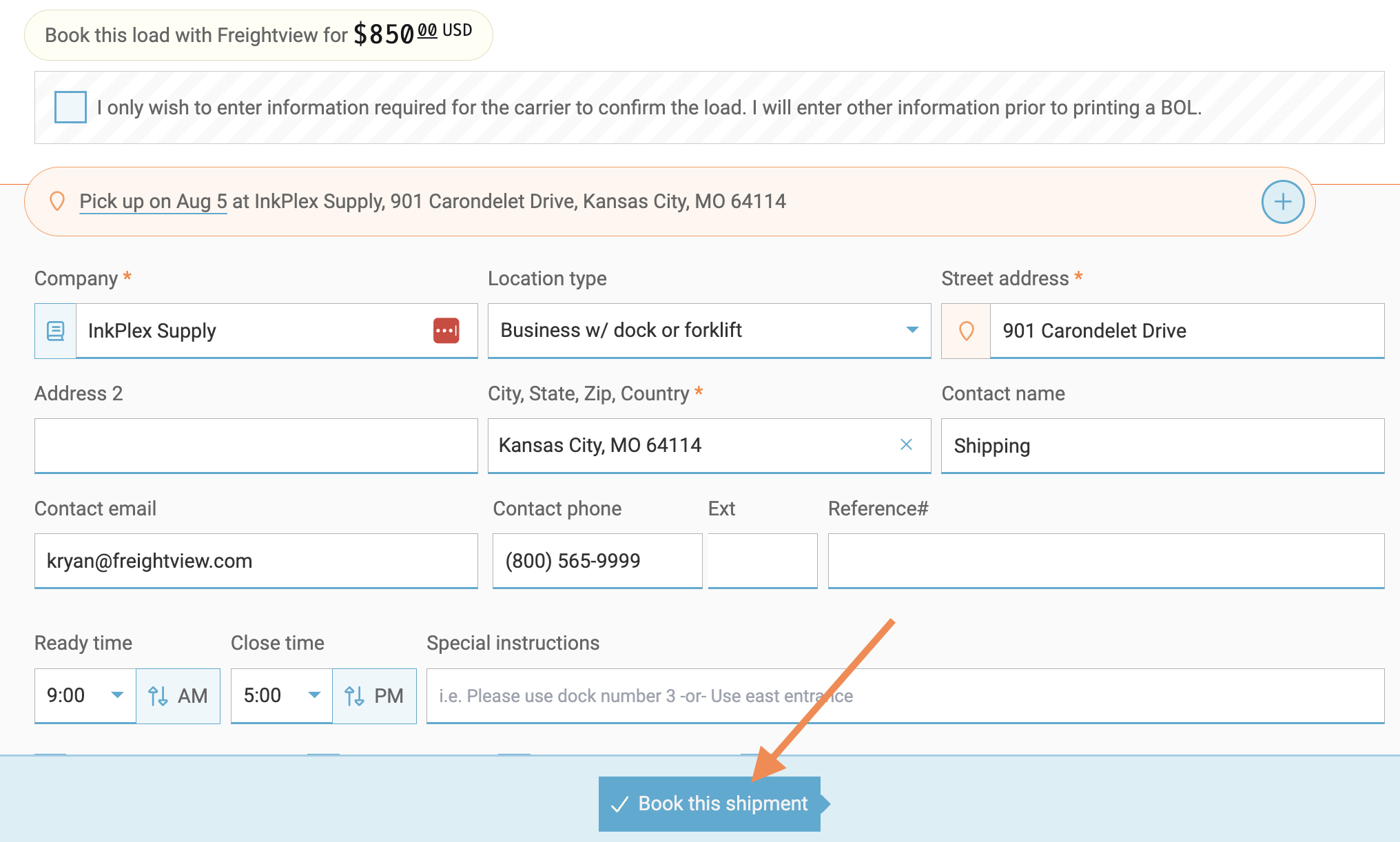
Next, you'll confirm the shipment info and select Looks good, proceed. Once all stops and required fields are filled out, click Book this shipment.
Success
Your shipment is booked! Click on the shipment card from the Shipment Page to see additional options in the slider.
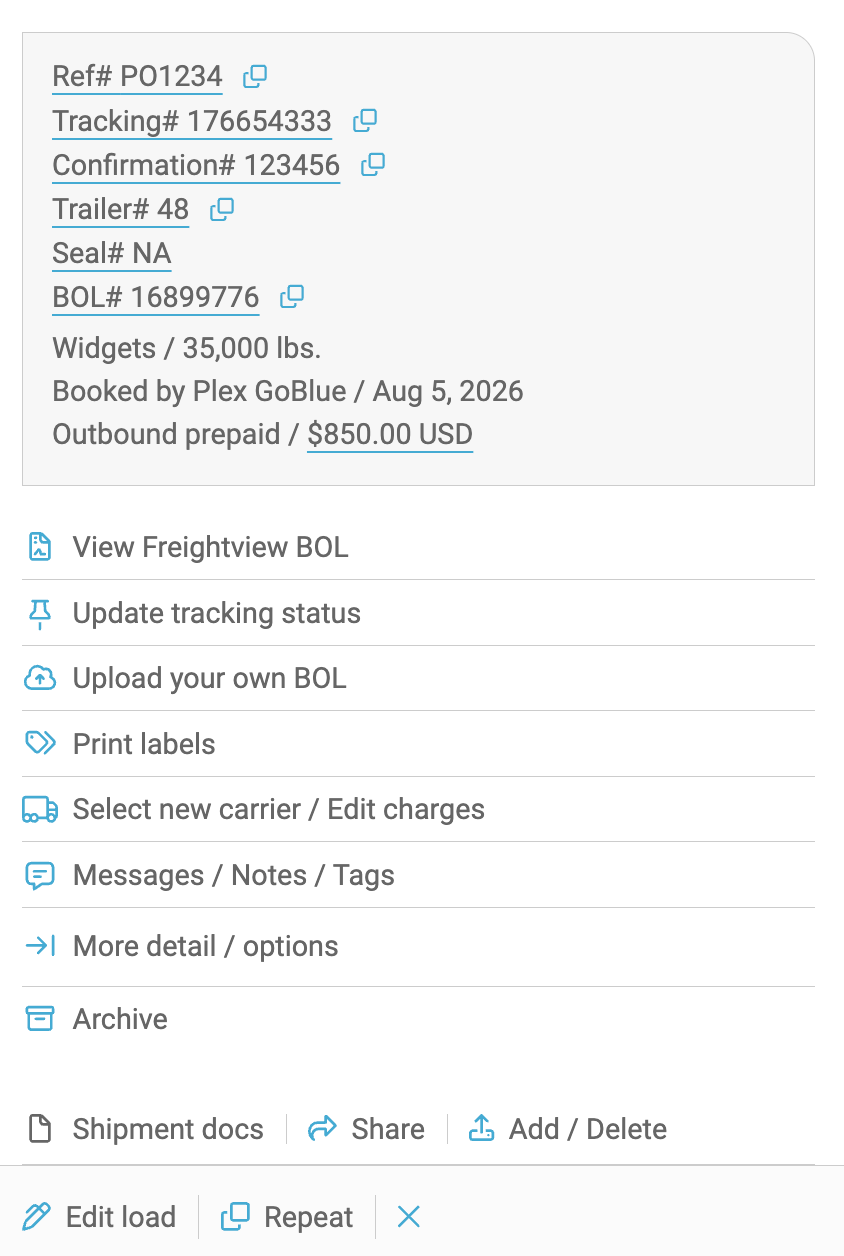
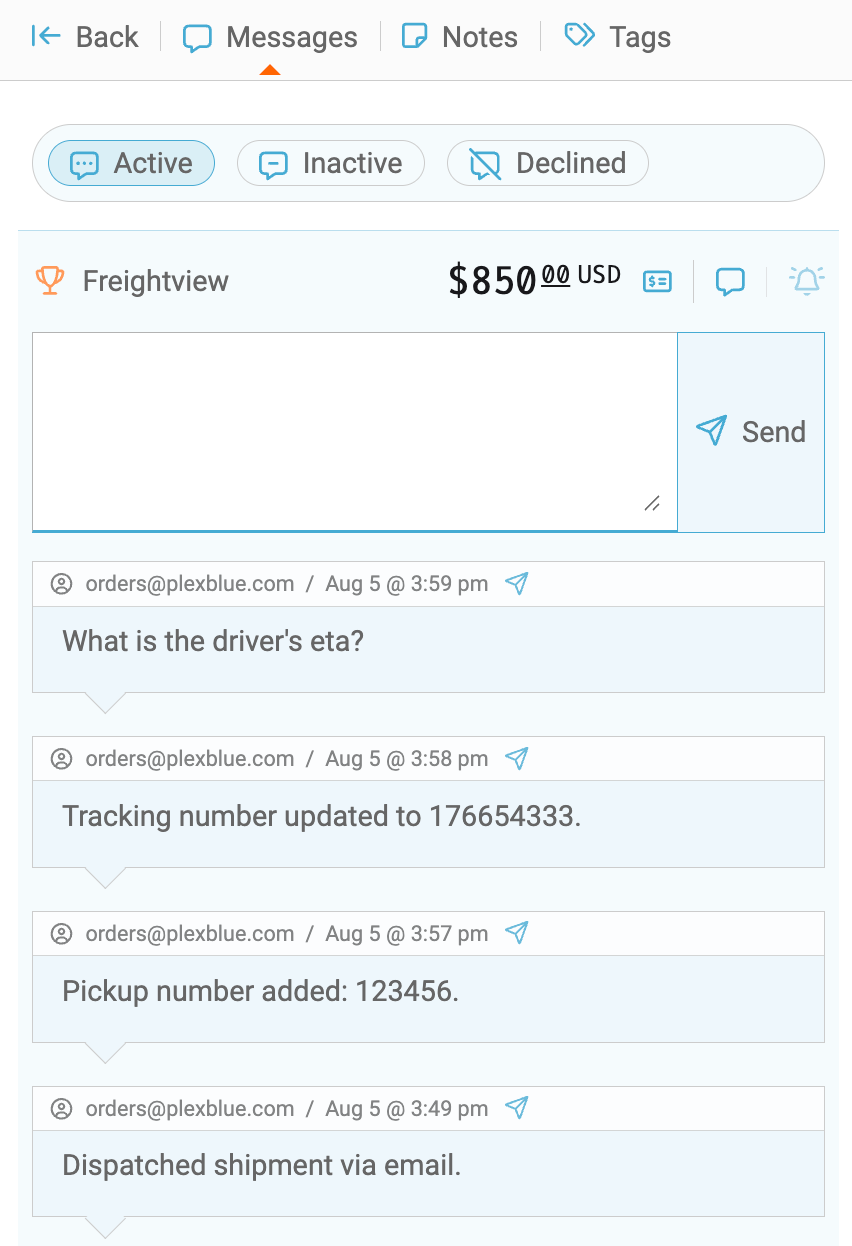
Messaging & Tracking
After a shipment is booked, you can follow up with your carrier via the Messages inside the shipment slider or watch for new notifications within your Message Center.

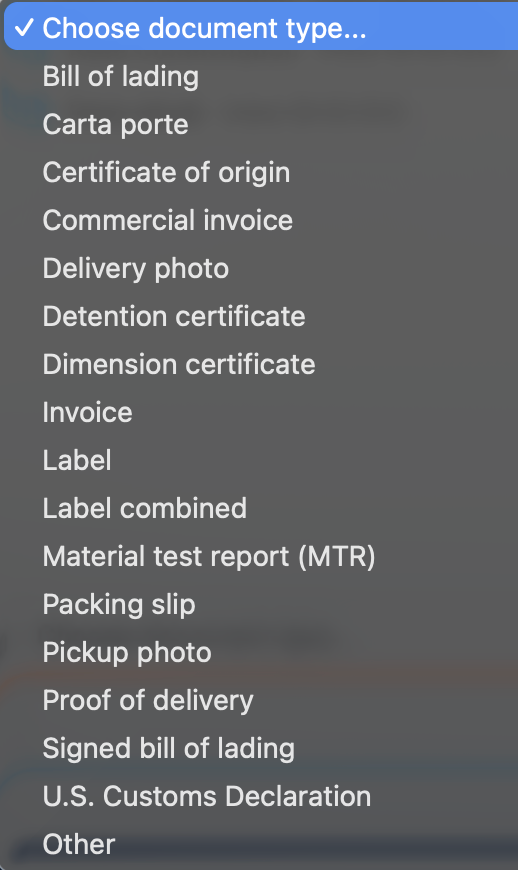
Documents
Both you and your carrier partner can add and share documents throughout a shipment's life cycle. Select Add / Delete to upload one of the following options.
Read more about Batch Quoting & Booking!
Questions? Click the blue chat button on the bottom right of any FV page to reach us.