
Quote Filters
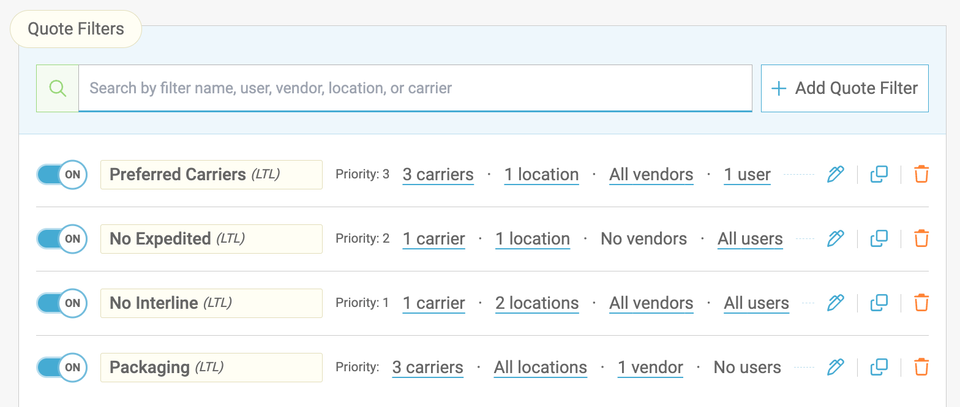
Freightview’s new Quote Filters tool gives you control over your rate results. Instead of viewing every carrier and service option, you can create rules that ensure only the carriers and services you want appear across various algorithm options.
Curate your carrier options by provider, lane, service level, customer preferences, and more!
Set Up a Quote Filter
Users with access: go to your Freightview Settings > Quote Filters. From there, click + Add Quote Filter. These settings allow you to customize filters for different teams, facilities, or shipping scenarios.
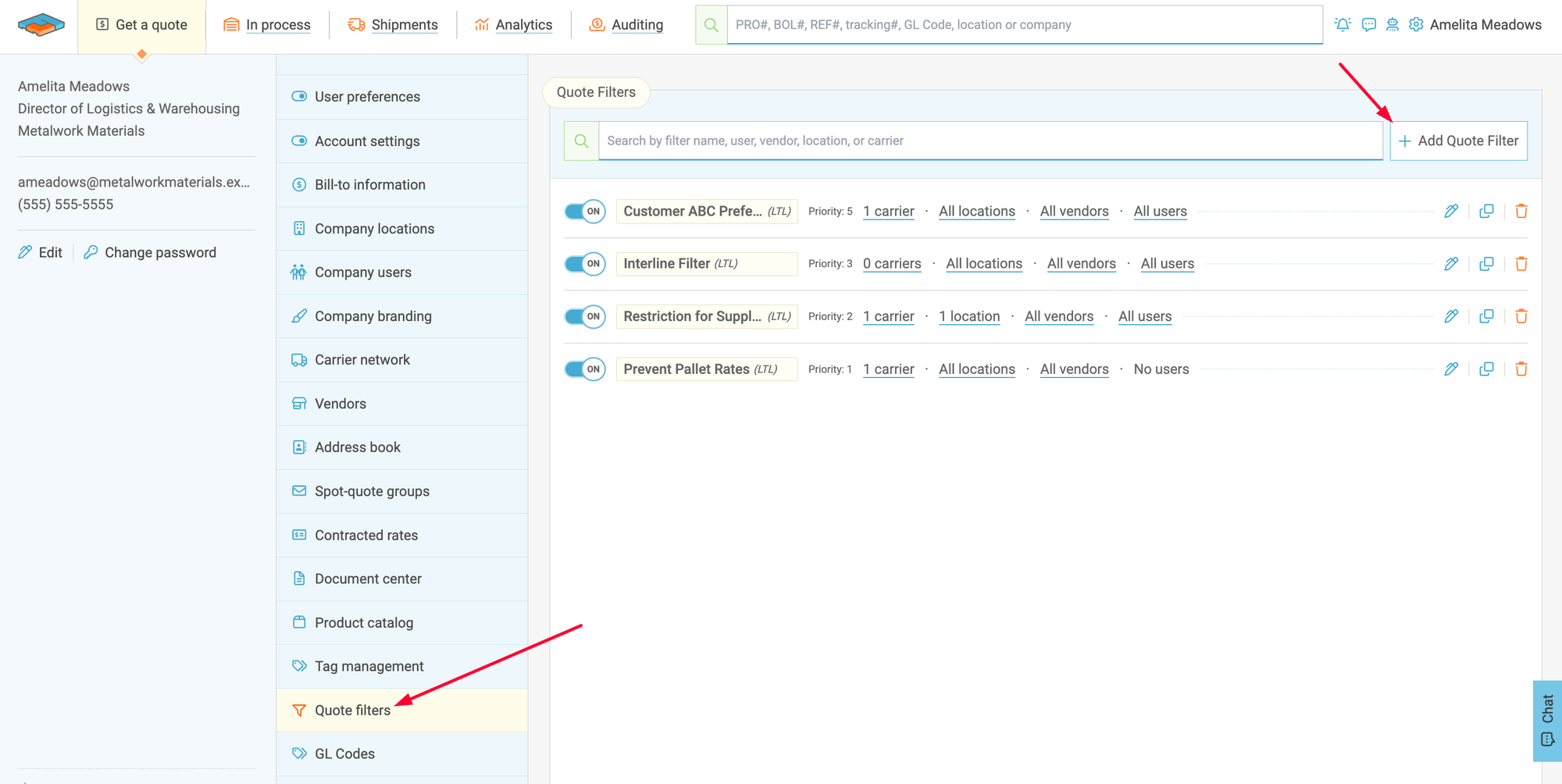
Several configuration options are available:
• Rule Name – A name that helps you easily identify the filter.
• Priority – Determines which rule takes precedence if multiple filters apply.
• Mode – Choose whether the rule applies to LTL or Parcel shipments.
• Applies To – Set the rule for specific locations, users, or vendors.
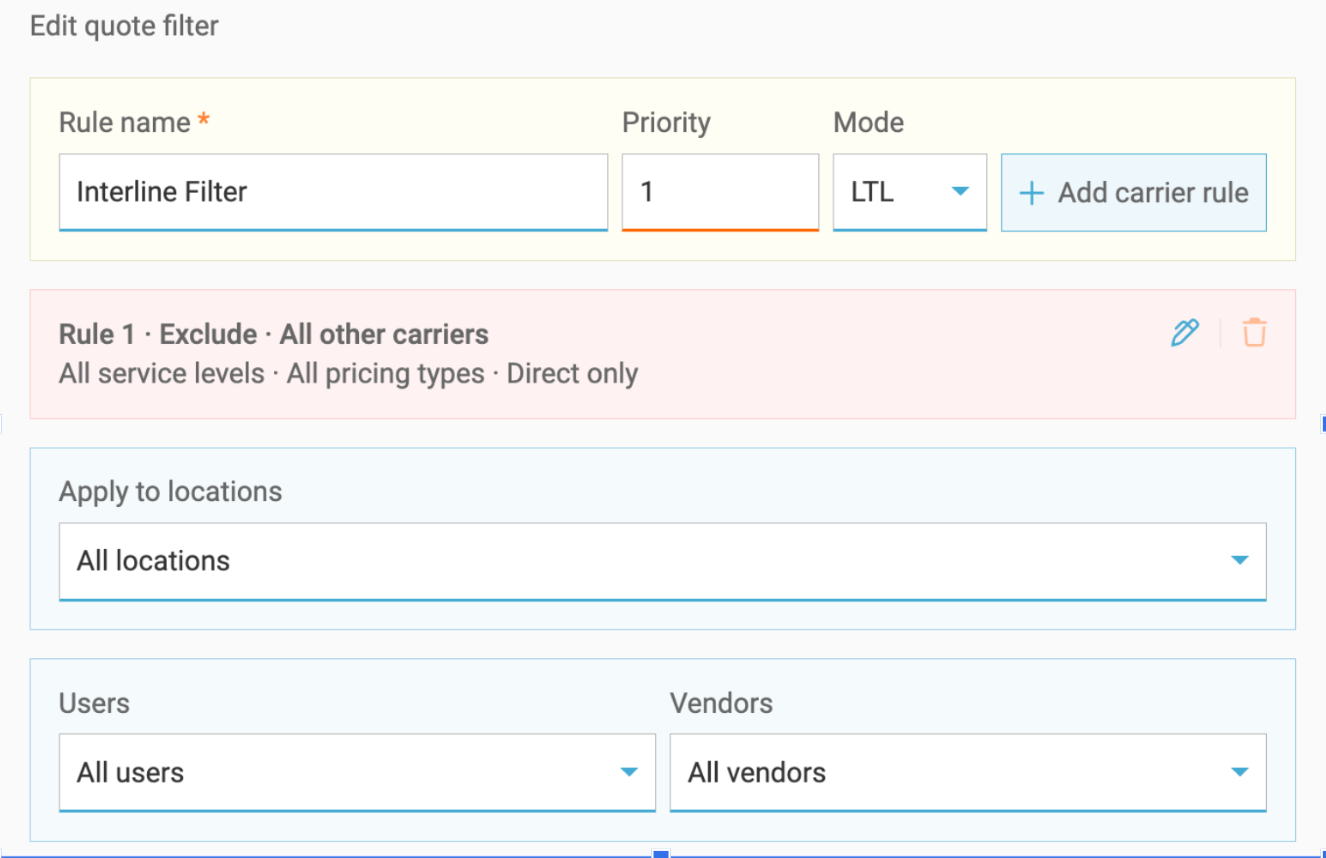
Add Carrier Rules
Click + Add Carrier Rule to define results by LTL and/or Parcel carrier.
Here you can control criteria such as:
• Specific carrier or broker
• Service types
• Interline hauls
• Pricing
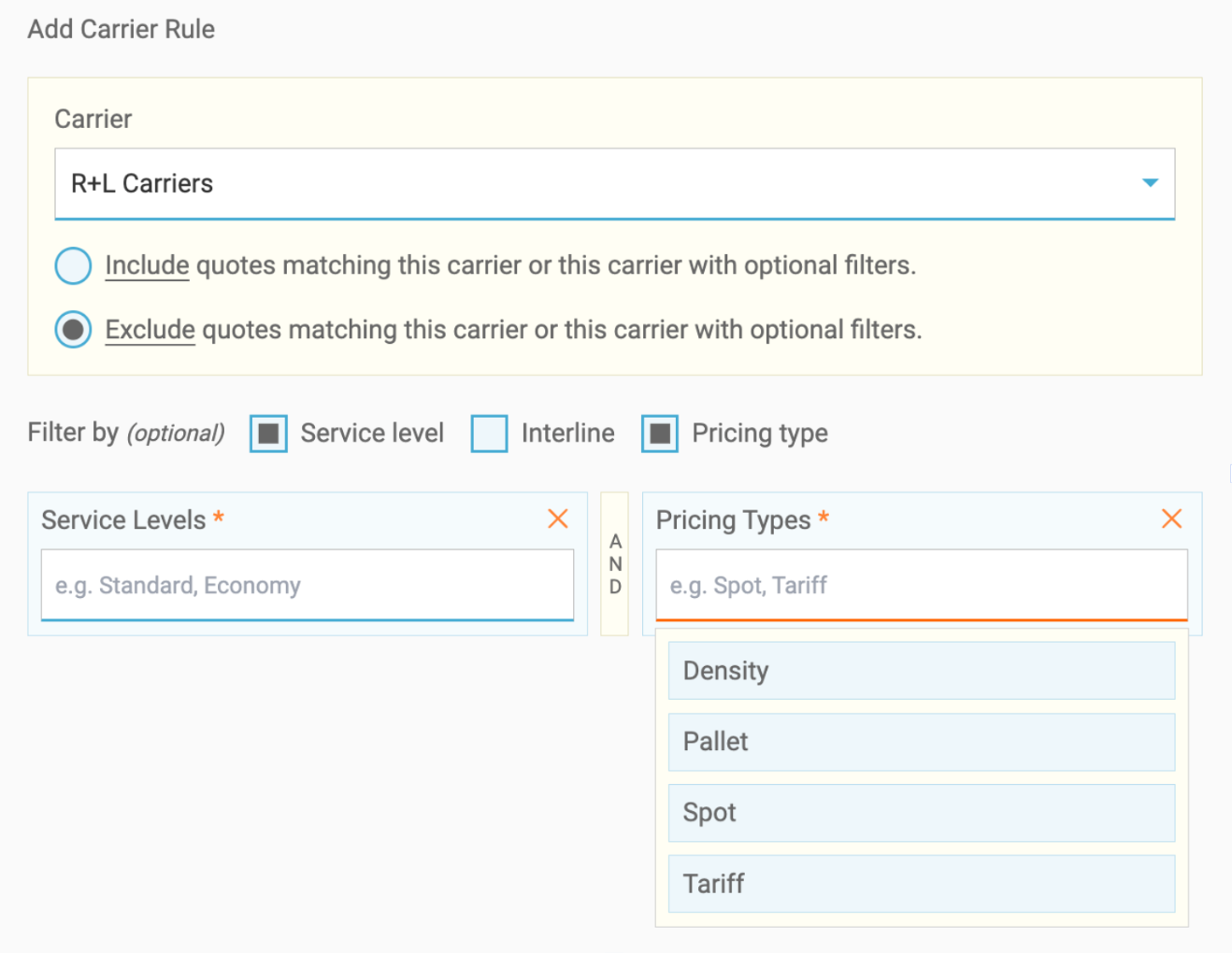
When a quote with filtered mapping is requested, instead of a rate, you’ll see a message indicating that the result was filtered out.

Common Use Cases
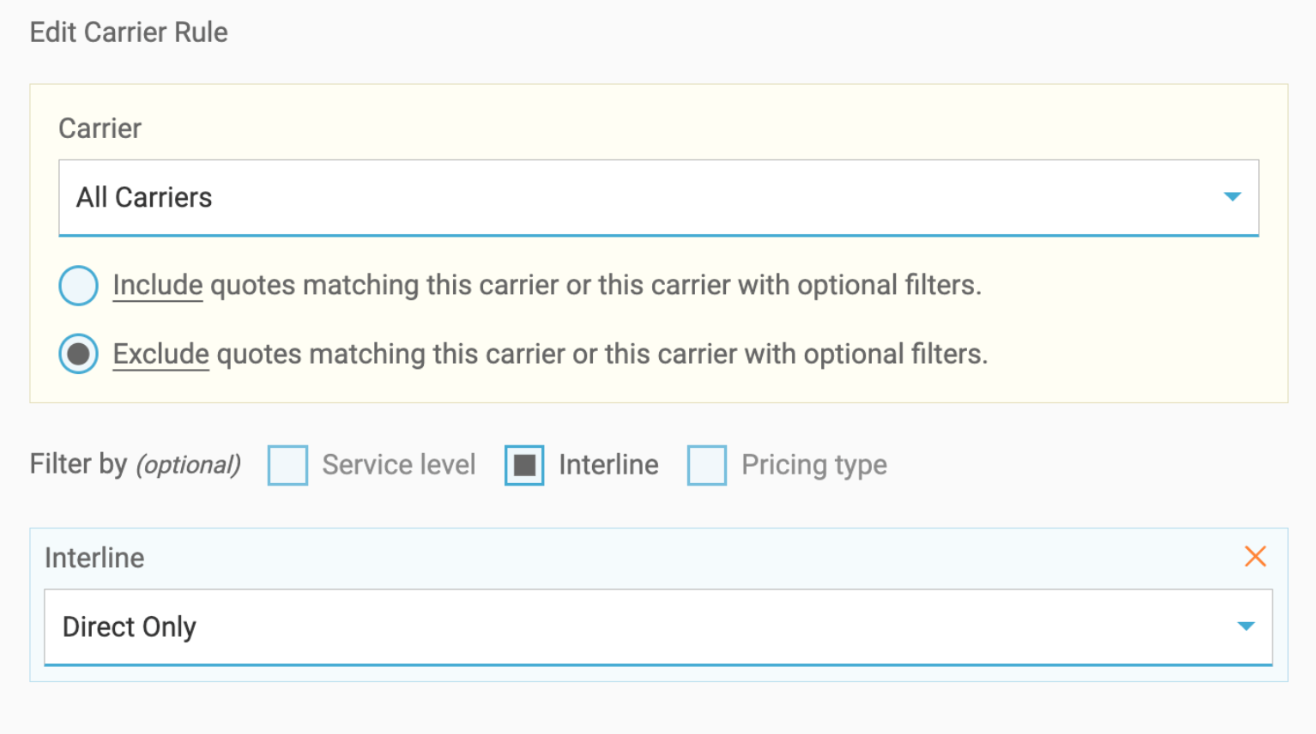
Interline Rates
While generally less expensive, a shipment that is interlined involves changing carriers, which can cause transit delays or other issues.
To segment: Create a filter for LTL mode, then add a carrier rule that excludes interline services across one or all carriers.
Customer Carrier Preferences
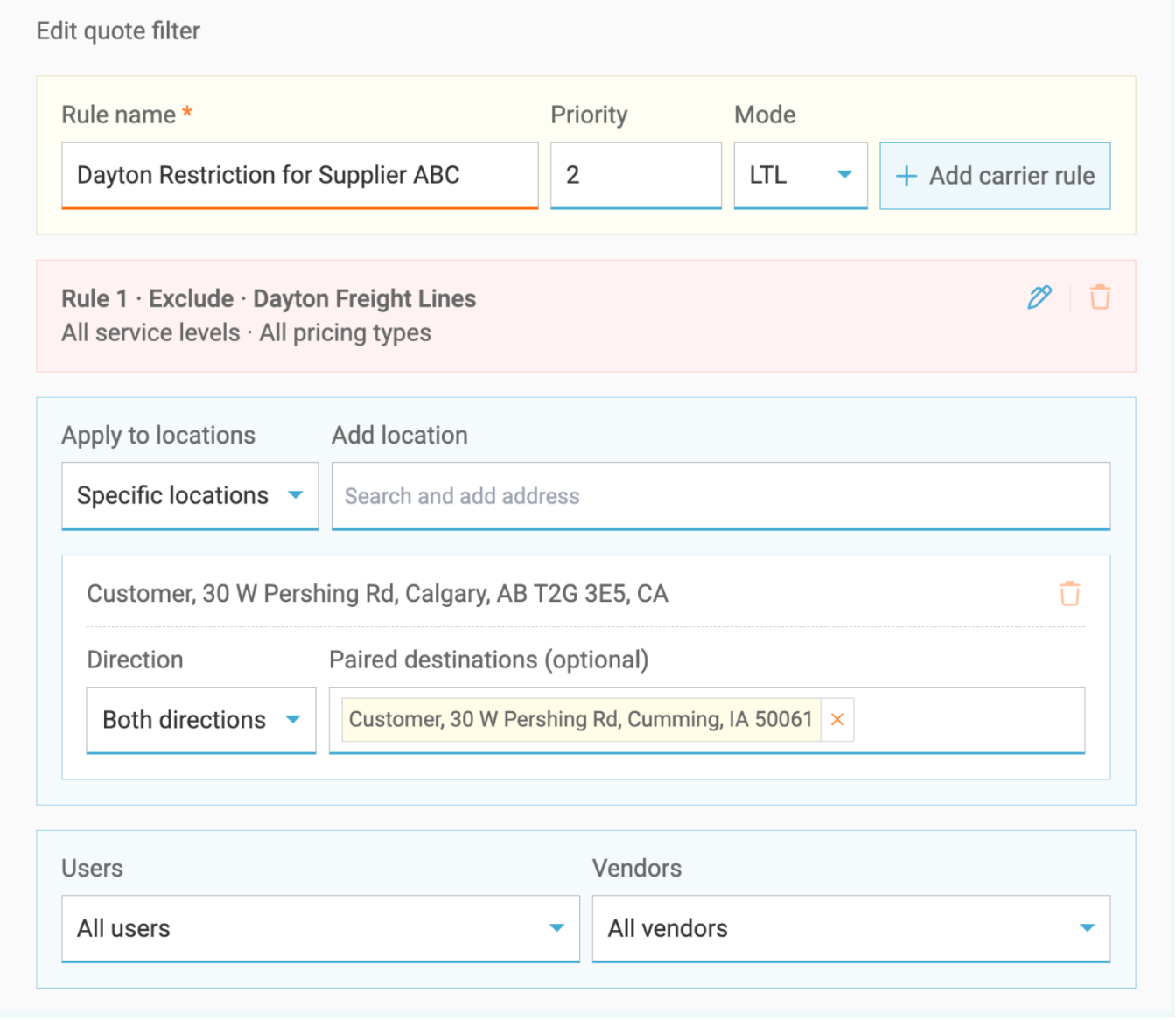
Does your supplier prefer or not allow a certain carrier?
Options to segment this rule include:
• By specific customer location.
• Multiple customer locations.
• Inbound shipments from the customer.
• Outbound shipments to the customer.
• Or both inbound and outbound shipments from the customer.
Quote Filters help your team standardize carrier selection, reduce quoting errors, and follow customer needs.
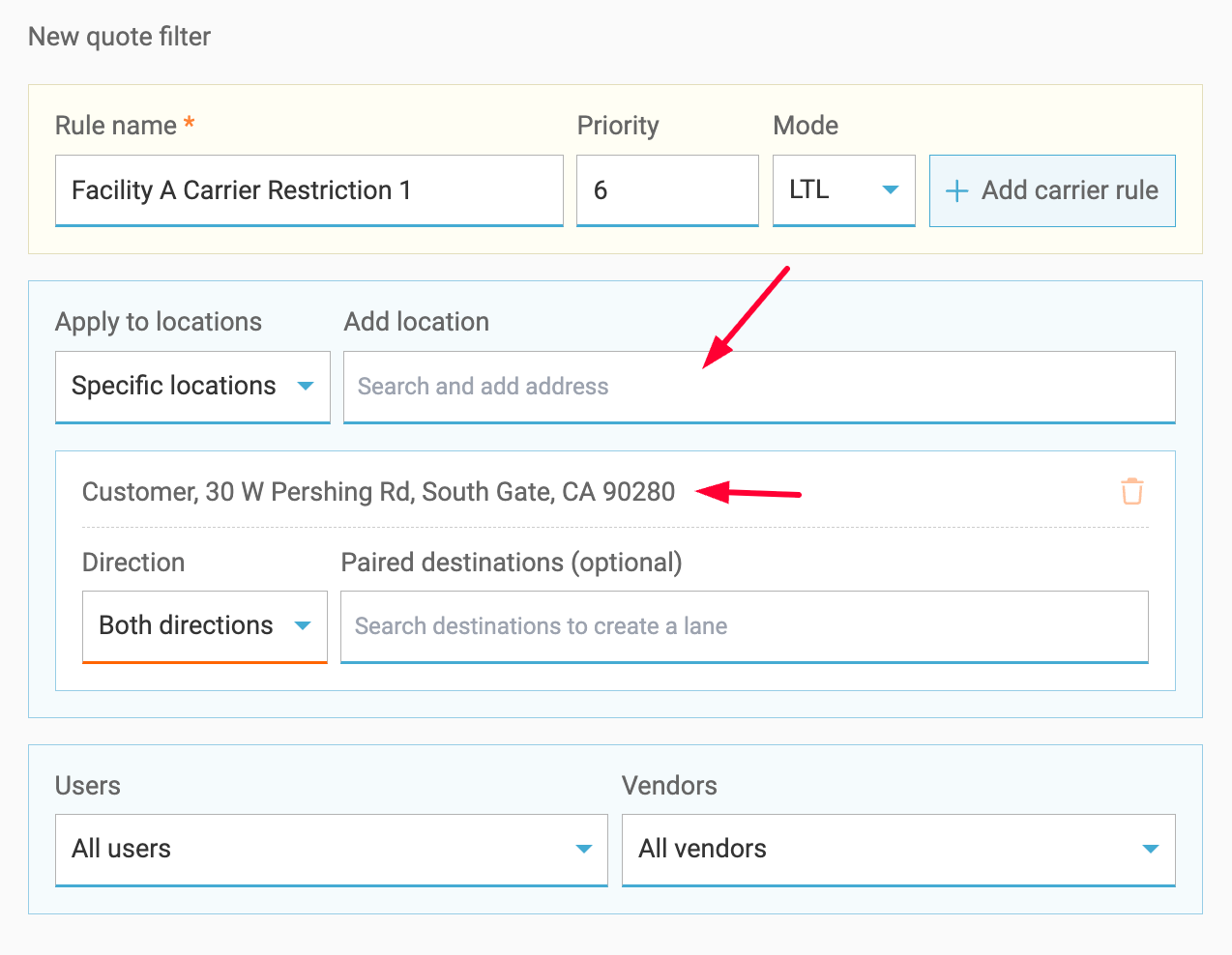
Carrier Selection by Facility
Different locations, different carrier strategies.
Quote Filters let you control which carriers appear based on the facility you’re shipping from or to. This is perfect for prioritizing carriers that perform best in certain regions—or limiting options where service coverage is tighter.
Vendor-Based Carrier Restrictions
Using the Vendor Portal? You’re covered there, too.
Set rules that control which carriers, service levels, and pricing types each vendor can see when quoting. Filters can be customized at the individual vendor level, so each partner only sees the options you want them to use.
Quote Filters give you the flexibility to standardize your process without slowing your team down, so the right options show up every time.
If you’d like help setting things up or want to see it in action, reach out to our Support Team. We’re happy to help!