Fuel, Distance, and Historical Pricing
Freightview gives you tools to gather mileage details on your LTL and FTL shipments through an active connection with PC*Miler. You can also calculate fuel surcharges on your contracted rates whenever your carriers rate fuel and/or linehaul amounts per mile.
Fuel & Distance
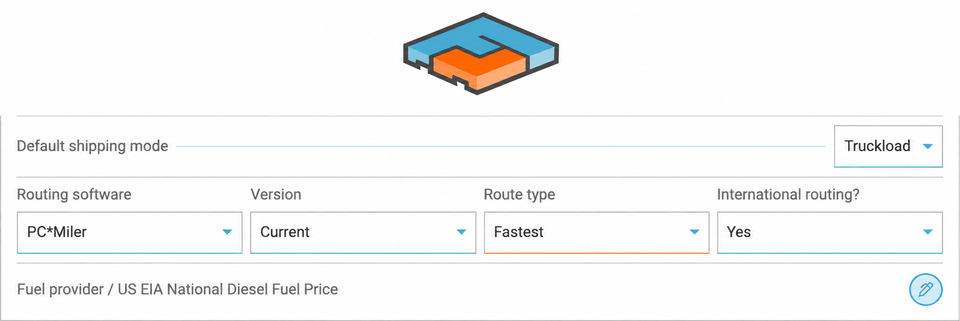
Once Fuel & Distance is enabled for your account, go to your Account Settings to toggle PC*Miler version, Route type, and International routing.
Route Type Options
Fastest – Chooses the quickest route, even if it adds mileage to stay on highways.
Practical (Default) – Balances speed and route efficiency for realistic truck travel.
Shortest – Selects the fewest miles, even if that means smaller roads or less efficient routes.
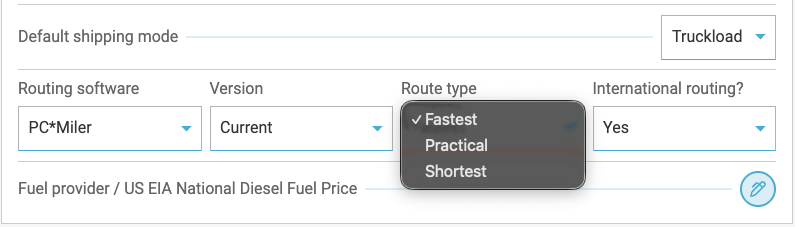
Once configured, you can apply these settings to your Truckload contracted rates and identify lanes that calculate fuel or linehaul by mileage.
If your fuel surcharge is mileage-based, add a fuel table so Freightview can determine your cost per mile.
👉 Learn more about setting up Contracted Rates.
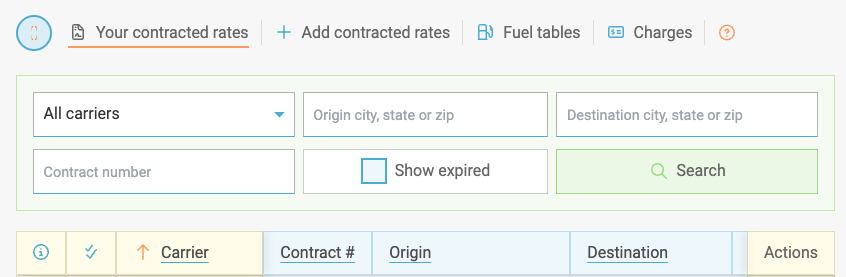
Fuel Tables
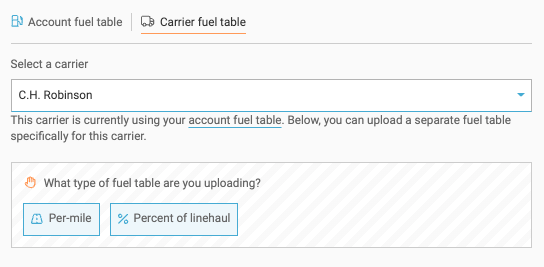
Specify whether to use Per-mile or Percent of linehaul when including the fuel table in your contract upload.
Historical Pricing
Review Historical Pricing on any Truckload lane you have shipped in the past to get instant context before you award a bid or quote a load.
How It Works
When quoting a Truckload lane that is similar to a shipment booked within the last 30 to 90 days:
1. Select your equipment type and enter your shipment description, weight, and addresses as usual.
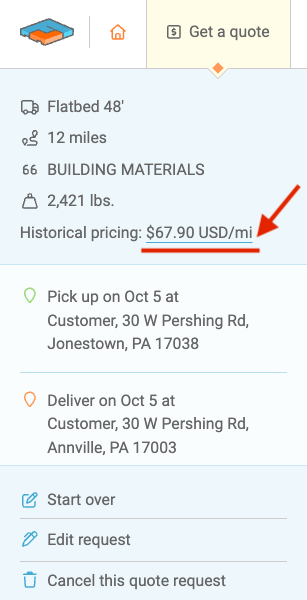
2. If previous shipment data is available for that lane, a historical price will appear directly on your quote screen.
3. Click the displayed price to open a detailed breakdown of what you previously paid on that lane.
Historical pricing also matches across compatible equipment types (for example, quoting a Dry Van 48' will pull historical benchmarks from past Dry Van 53' bookings).
Customizing Your Benchmark View
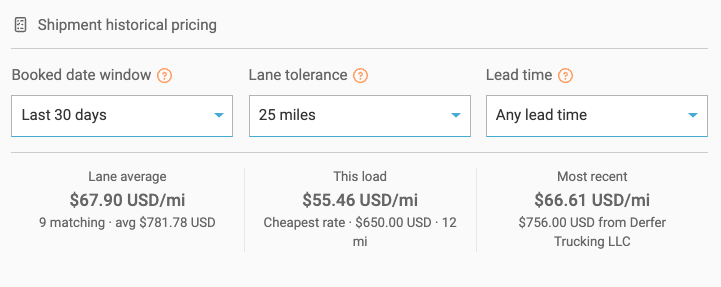
Inside the detail drawer, you can fine-tune your comparison with three dynamic filters:
Booked Date Window – Adjust the historical window from 30 up to 90 days in the past.
Lane Tolerance – Broaden or narrow how closely previous pickup and delivery locations must match your current lane.
Lead Time – Filter by how far in advance past loads were quoted prior to pickup.
Use these insights to quickly verify whether current broker and carrier spot bids align with your historical spend!
Truckload Mileage
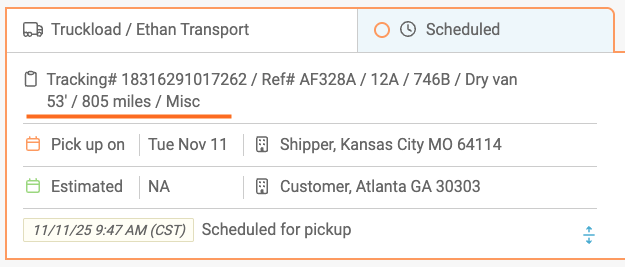
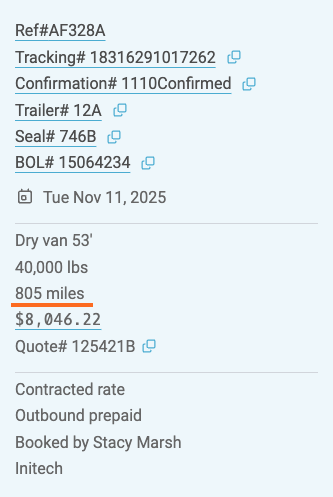
Once enabled, mileage appears in several places: the Truckload quote screen before you award a shipment, when setting up a spot quote, the shipment & details page, and in basic & advanced exports under the Distance column.
👉 Learn more about our Truckload workflow features.
LTL Mileage
Mileage is also available for LTL shipments. The same PC*Miler configuration you set in Account Settings applies here, and is also displayed with the booked shipment details & exports. (We’re exploring additional visibility options, such as showing mileage directly in the LTL Rates screen).
Cost & How to Enable
Fuel & Distance is an add-on tool with pricing based on shipment volume. If you'd like to enable or learn more about these tools, please reach out to our Support Team. We’ll walk through your setup and make sure your routing preferences align with your carrier contracts.